What happens to your audio when you hit upload
When you upload an audio file to Henshu, it comes back sounding like someone who knows what they're doing spent an hour on it. The background noise is gone, the volume is even, and it's ready to publish on Spotify without touching a single setting.
Here's what that actually sounds like.
Hit play, then hold "Compare" to hear the original recording.
Hear it yourself
Those are real recordings. The cafe clip was recorded on a phone in a busy coffee shop. The car clip had the windows cracked open on a highway. Both went through Henshu's processing pipeline with zero manual adjustments.
Hold the "Compare" button while it's playing. That's the original. Let go and you're hearing what comes out the other side.
If you want the broader picture of AI audio enhancement as a technology, we wrote a separate piece on what AI podcast enhancement can and can't do. This post is about what Henshu specifically does to your file, step by step.

The five-step pipeline
When your file arrives, five things happen:
- Format normalization. Your file gets converted to 48kHz, 32-bit float, mono WAV. Whatever format you uploaded (MP3, M4A, voice memo), everything downstream gets a consistent input.
- Noise reduction. AI identifies what's voice and what's not, and strips out the background.
- Level balancing. Volume gets smoothed across the entire recording so you sound consistent throughout.
- EQ and tone correction. Your voice gets analyzed and the frequency balance is adjusted to sound clear and warm, compensating for both your mic and your natural voice characteristics.
- Loudness normalization. Each file's loudness is adjusted to land in a consistent range, so all your tracks sit at similar levels when you assemble them in the editor.
Step 1 is format conversion. Step 5 is math. Steps 2 through 4 are the interesting ones — more on that below. The whole thing runs on AWS and results typically come back within a couple minutes.
Noise reduction
This is where the AI does its best work.
The model figures out what's voice and what isn't, then strips out the background while leaving the voice alone. Fans, air conditioning, traffic hum, cafe chatter, electrical buzz: that stuff gets cleaned up almost completely.

The key word is steady. The AI learns what the background sounds like and subtracts it. A constant hum is easy to model. A door slamming or a dog barking once? Harder, because there's less pattern to learn from. That kind of noise removal used to mean dedicated audio software and hours of manual cleanup. Now it runs on upload.
Level balancing
Recordings rarely have consistent volume throughout. You lean in, lean back. You get louder when you're excited and quieter as you run out of breath mid-sentence. You trail off while reading a quote. One guest is louder than the other.
Level balancing looks at the volume across the entire recording and smooths it out. The result is consistent without sounding squashed, which is what you usually get from a heavy compressor.

We built this to do what a seasoned audio engineer would do: listen to the recording, judge what it needs, and adjust accordingly. If you're a dynamic speaker who goes from quiet to loud constantly, it compresses more aggressively. If you're naturally monotone, it barely touches it. A whisper gets boosted gently. A laugh gets tamed without killing the energy. You end up sounding like you were the same distance from the mic the whole time.
EQ and tone correction
Every voice is different. Some people are naturally bass-heavy. Some are nasal. And then the microphone and room add their own color on top: a phone recording tends to sound thin, a laptop mic picks up too much low-end rumble, a dynamic mic in a small room can sound boxy.
Before any of this runs, the pipeline listens to your entire recording and builds a profile of your voice — where the energy sits, how bright or dark it is, whether there's harshness in the upper range. Then it adjusts the EQ to compensate. A bass-heavy voice on a boomy mic gets a different correction than a thin voice on a phone. The result sounds clear and warm without flattening what makes your voice yours.
The difference is subtle compared to noise reduction. But A/B the result against the original and you'll hear it: the voice sits more clearly in the mix, less colored by the mic and more like how you actually sound.
We're careful here. Aggressive EQ makes voices sound artificial. So the corrections stay conservative. Better to leave the voice slightly imperfect than to make it sound filtered.
Loudness normalization
When you upload multiple recordings, they arrive at wildly different loudness levels. One track might be whisper-quiet, another recorded way too hot. If you dropped them into a timeline as-is, you'd spend half your editing time riding volume faders.
This step measures each file's loudness after all the other processing and adjusts it to land in a consistent range. Loud enough to work with, but with headroom left for mixing. Every file that comes out of the pipeline sits at a similar level, so when you drag tracks into an episode, they already sound like they belong together.
The final loudness target for podcast platforms gets applied later, during episode generation — we target -16 LUFS, the widely accepted standard for podcast distribution. At the upload stage, we keep individual files slightly quieter to leave room for BGM, intros, and level adjustments in the editor.
Where the pipeline struggles
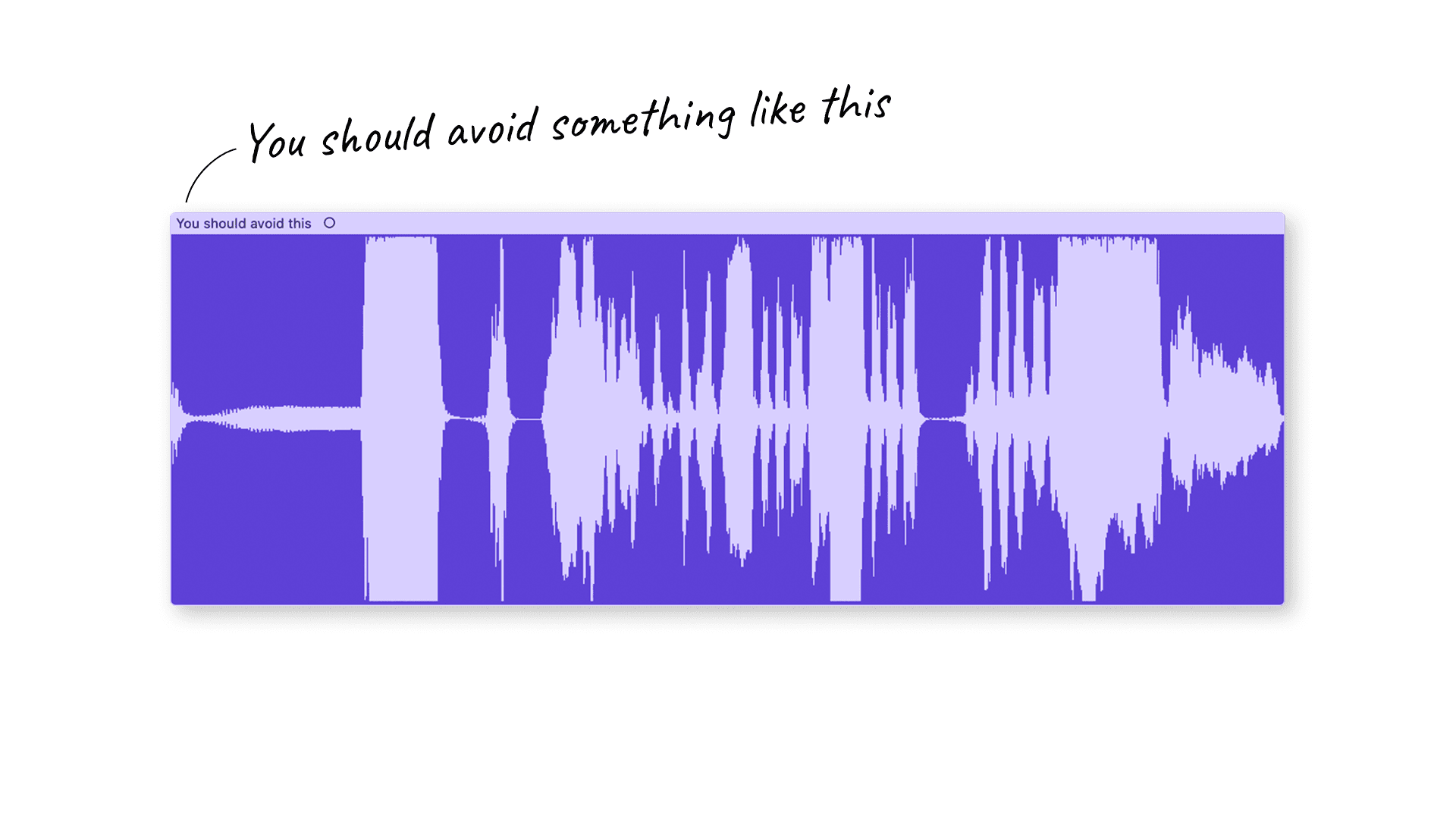
The pipeline handles a lot, but it can't fix everything. The single biggest thing to watch out for is clipping. If your recording levels hit the maximum and distorted, that information is gone. Clipping destroys the waveform and no AI can reconstruct what was lost. Keep your levels conservative when you record — it's the one mistake that's truly unrecoverable.
Background noise in most environments is fine. A cafe, a room with a fan, street noise outside the window — the pipeline handles that well. Where it gets harder is when someone else is talking at a similar volume. When the noise is also a voice, the model struggles to decide what to keep.
We wrote more about these problems and practical workarounds in our piece on what AI enhancement can and can't do.
Why we made it automatic
Most audio tools give you controls. Gain knobs, noise reduction sliders, EQ curves, compression thresholds. We skipped all of that.
Most Henshu users are creators, not audio engineers. They know what "sounds good" means but wouldn't know where to set a noise gate threshold. Giving them sliders is like asking someone to manually white-balance their phone camera. The automatic version works for most recordings, and the manual version mostly introduces ways to make things worse.
We think the right number of audio settings for a podcast creator is zero. You're here to tell a story, not to become an audio specialist.
If you're an audio engineer who wants fine-grained control, Henshu probably isn't your tool. That's fine. We built this for the person who wants to record, arrange, and publish without learning a new profession along the way.
Want to hear what it does to your own audio? Upload a clip and find out. The free plan covers 5 hours of storage, no credit card.
Hear the difference yourself
Upload your audio and let Henshu handle noise, levels, and mastering. Free to start, no credit card required.
Try Henshu free